
Screenshot & Blur: capture any page and hide private info
by brownie.tools
Capture pages and hide private details with solid boxes in an editor tab. Available on Edge and Firefox. Chrome listing coming soon.
Chrome listing coming soon
- Version
- 0.1.0
- Updated
- Published
- Category
- Productivity
- Works in
- Edge and Firefox
- Price
- Free
- Data
- Stays on your device
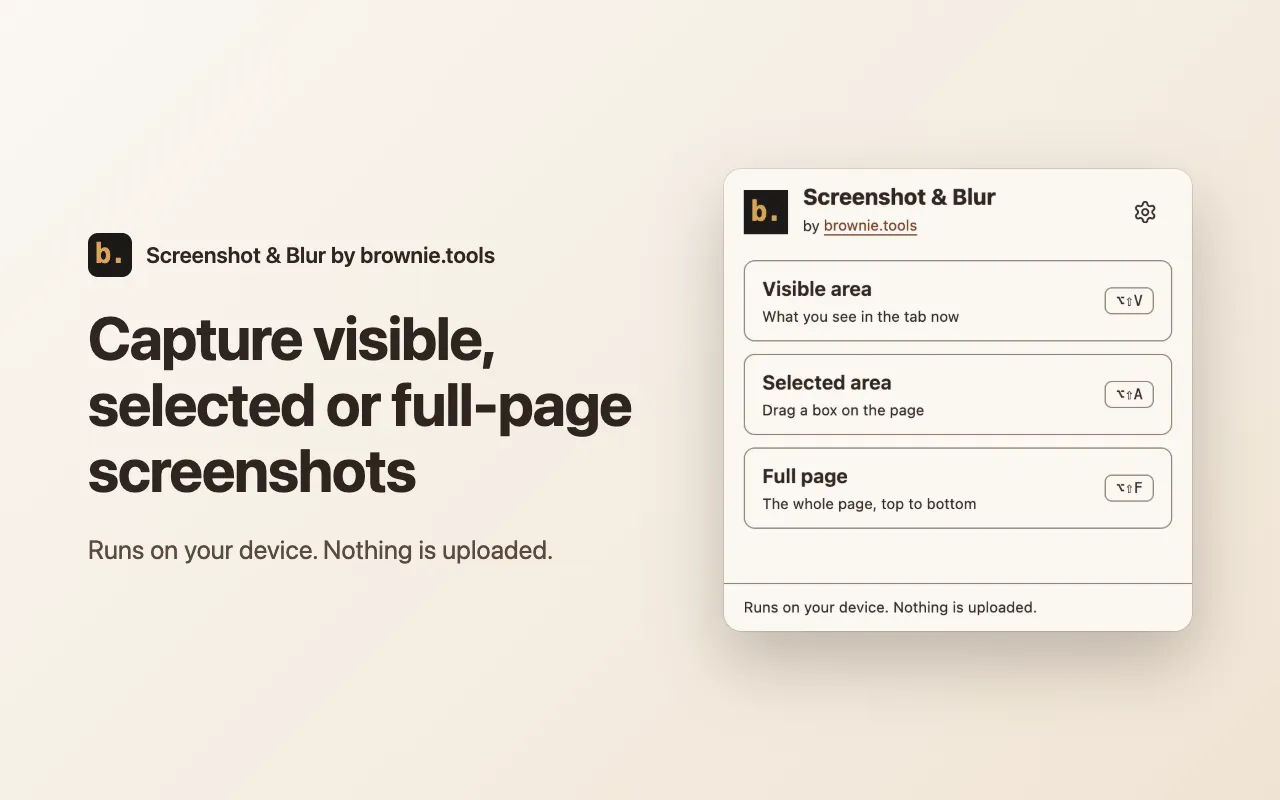
Screenshot & Blur captures the visible area, a selected area or the full page, then lets you black out, pixelate or blur anything private before you save or share it. It suggests emails, phone numbers, card numbers and keys to hide, runs entirely on your device and has no account, no cloud and no paid tier.
Screenshots
What it does
-
Three ways to capture
The visible area, a box you draw on the page (with a keyboard alternative), or the full page from top to bottom.
-
Full page that looks right
Sticky headers and cookie bars appear once, lazy images load first, and the page is put back exactly as it was. Very long pages are shrunk or split into numbered parts, and you are told.
-
Solid hiding
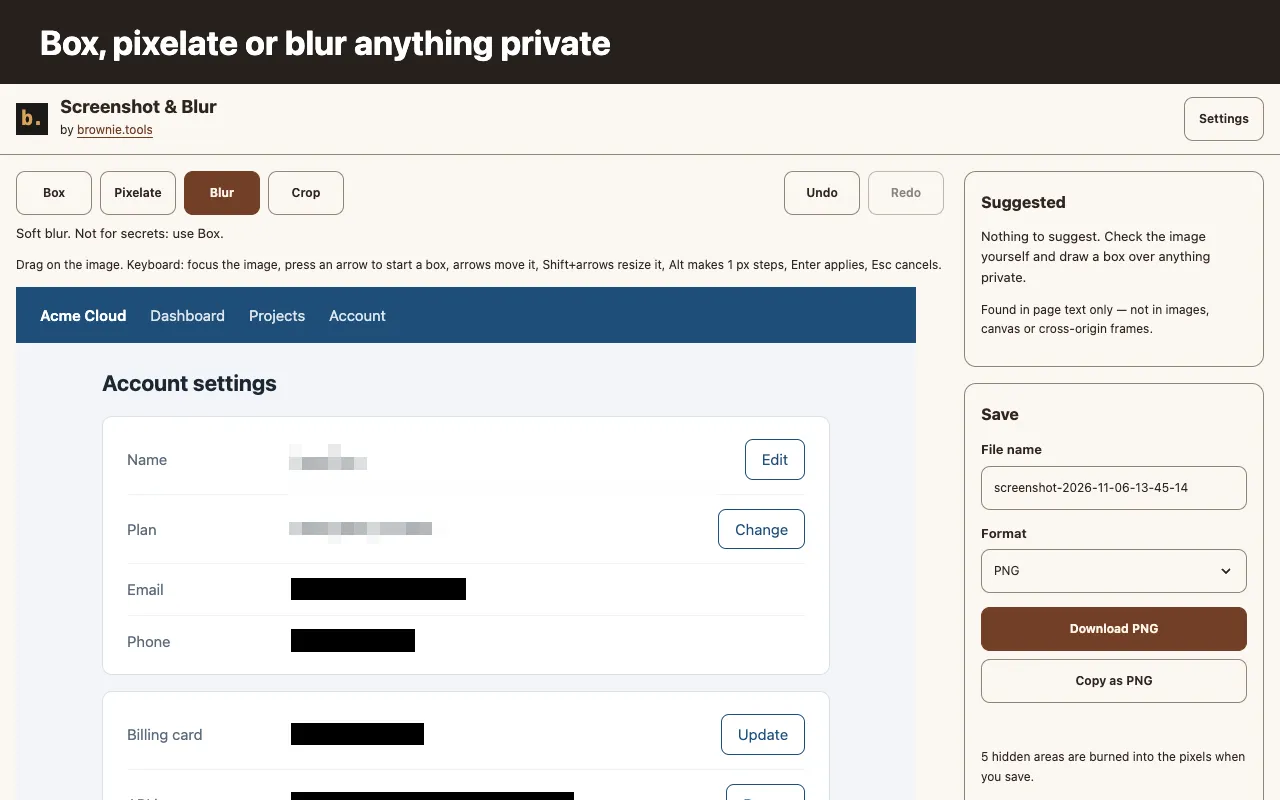
Box paints solid black over the pixels, so nothing underneath can be recovered. Pixelate and Blur are there for looks and say so.
-
Suggested hiding
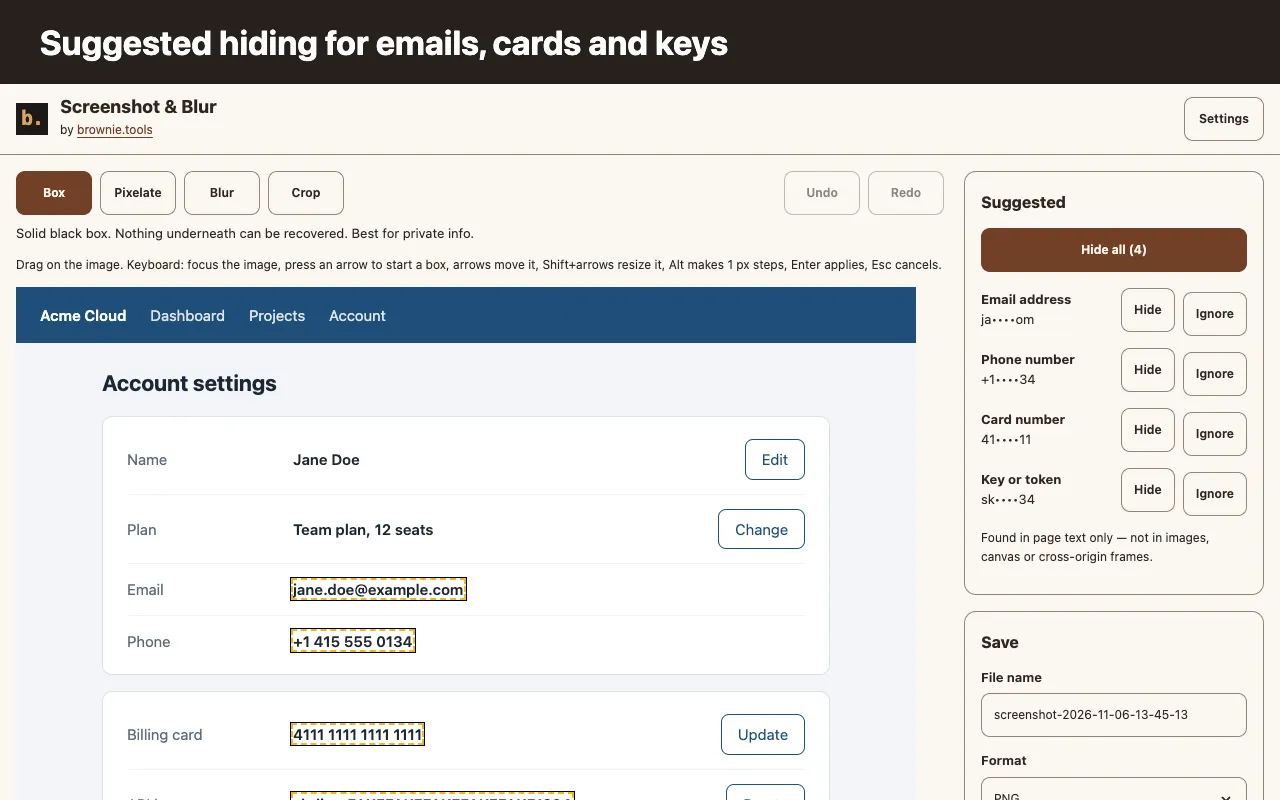
Finds emails, phone numbers, card numbers, IBANs, IP addresses and common API keys in the page text. Accept or ignore each one, or hide them all.
-
Crop, undo and redo
Trim the picture, step back and forward through your edits, and see the result before you save.
-
Save without uploading
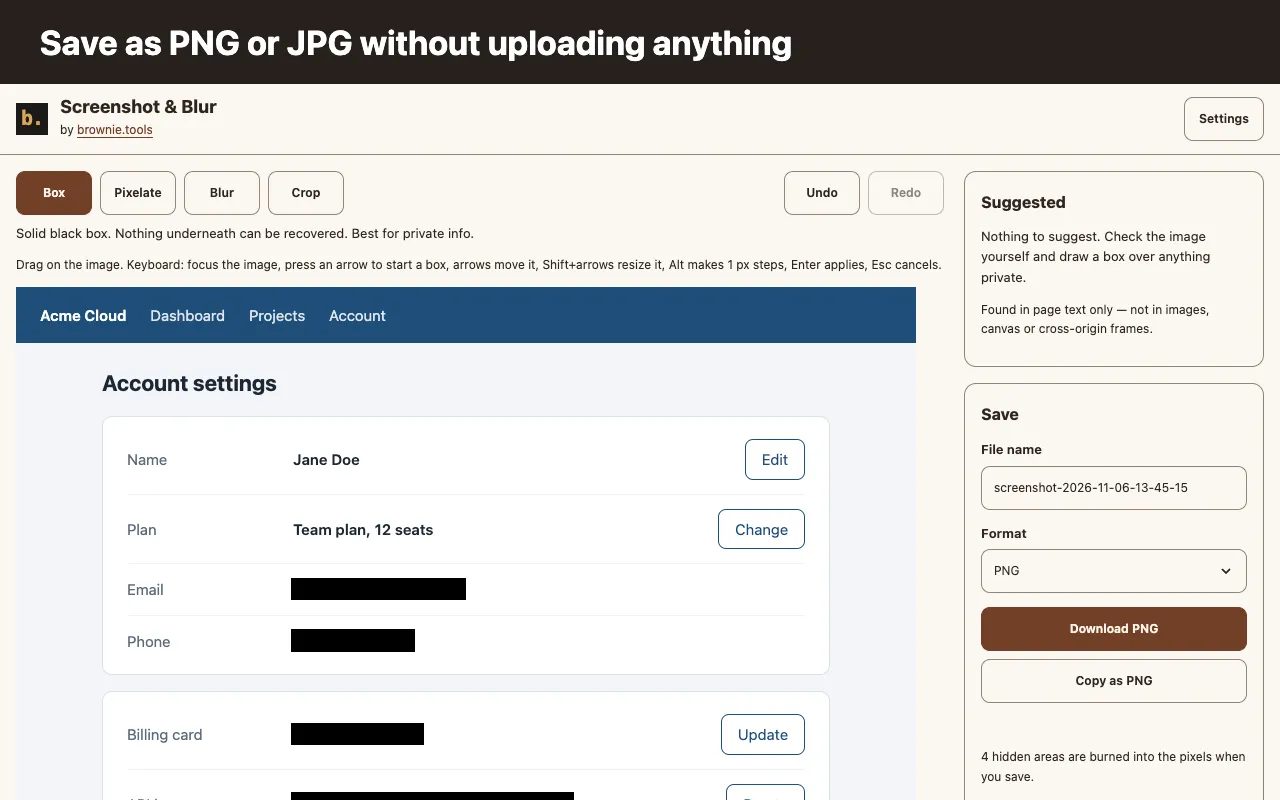
Copy the image as PNG or download a PNG or JPG with the file name you choose. The saved file has the hidden areas burned in.
How to use it
-
Capture
Click the toolbar icon, or press Alt+Shift+V for the visible area, Alt+Shift+A for a selected area or Alt+Shift+F for the full page.
-
Hide
The editor opens in a new tab. Draw a box over anything private, or press Hide all on the suggestions.
-
Save or copy
Download a PNG or JPG, or copy the image as PNG.
Permissions and privacy
Everything runs on your device. These are the permissions it uses and why. The full privacy policy for extensions has the details.
- Active tab
- Lets the extension capture the visible part of the tab you act on and read its title for the file name. It applies only after you click the icon, use a shortcut or choose the menu item.
- Scripting
- Runs the extension's own scripts in that tab: the selection box, the scroll-and-capture driver for full pages and the text scan behind the suggestions. Nothing runs when a page loads.
- Context menus
- Adds Screenshot this page to the right-click menu.
- Storage
- Keeps your settings on this device, and holds the picture in the extension's own storage while its editor tab is open. It is deleted when you close the tab, and anything older than 30 minutes is cleared.